
What Is a Password Manager and Why Would I Need One?
 By
By 
Key Takeaways
- A password manager is a tool that helps you create strong passwords, stores them, and gives you access with one master password.
- Dedicated password managers are purchased separately and have the highest level of security and features—while others, like Google Password Manger, come integrated with your browser and are free.
- Common concerns associated with password managers include single point of failure, physical device security and master password security.
- High-quality password managers make your data safer by creating, encrypting and storing strong passwords for you—helping you meet strict password security requirements.
A password manager is a tool that securely stores all your digital account passwords and allows you to access them with one master password when you need to log in anywhere.
As anyone with more than one online account knows, endlessly inventing and remembering passwords that must be 8–16 characters long—and include at least one uppercase letter, one lowercase letter and one special character—is a real bear. Oh, and you’re supposed to change them every three months. Yeah, it’s pretty much impossible. And if we take any shortcuts (looking at you, Mr. Birthday-Password-Used-for-Seven-Accounts), that makes us easy targets for cybercriminals.
Plus, with data breaches becoming almost daily news (a recent one leaked Gmail passwords), extra security around passwords is just smart.
A tool that helps solve all of these problems would really come in clutch! So let’s take a closer look at what a password manager is, consider some common concerns, and talk about why you should get one as part of a solid identity theft protection plan.
What Is a Password Manager?
A password manager is software that helps you create strong passwords and then stores them in an encrypted cloud file, which you can access with a master password when you need to log into an account.
What Is the Purpose of a Password Manager?
The point of a password manager is to make it easy to follow the incredibly difficult (sometimes impossible) requirements for password security. With a password manager, it’s easy to create unique, strong passwords for every account because it remembers them for you and often auto-fills them, so you don’t even have to type them in.
Third-party dedicated password managers also provide an added layer of security by encrypting your passwords before they leave your device and storing them with “zero knowledge” (an industry term for the ability to prove you know a password without actually sending it).
How an Online Password Manager Works
When you use a third-party dedicated password manager, you create a master password that only you know. Then the manager generates a strong, unique password for each account you create. It encrypts those passwords and sends them to a cloud-based file often referred to as a vault. All the passwords are encrypted before they enter the vault—so even if a hacker breaks in, they’ll only see a bunch of jumbled nonsense.
With a third-party dedicated password manager, only you have access to your passwords with your master password—the provider doesn’t have access to anything. This is called zero-knowledge architecture because the password manager never actually knows what your passwords are. The password manager does not store your master password.
When you need to log into an account, the password manager remembers which file of jumbled nonsense it stored for that account and sends it to your device, where it un-encrypts it and auto-fills it into the password field.
Browser-based password managers don’t necessarily have zero-knowledge architecture. Google Password Manager, for instance, encrypts your passwords but also has access to the vault, making it less secure.
Key features of password management software:
- Password storage in an encrypted vault
- Autofill passwords in login fields
Extra features often included:
- Random password generation
- Alerts if passwords are weak or compromised
- Dark web monitoring for evidence your password is showing up where it shouldn’t be
- Secure storage of other sensitive data (like credit cards, secure notes, documents)
- Cross-device syncing
Benefits of a Password Manager
If you’ve read the last few sections, the benefits of a password manager are pretty obvious. They include:
- Strong, unique passwords
- Convenience (you don’t have to remember passwords or type them in)
- Less password fatigue (you don’t have to constantly create and track new passwords)
- Better security (unique, strong passwords for every account helps protect against credential stuffing after a security breach)
Here's a Tip
Credential stuffing is when cybercriminals scoop up passwords leaked in a data breach and run them through your account logins, hoping one will work. You’re especially vulnerable if you use one password for multiple accounts. That lazy multiuse password only has to leak once and those hackers are into multiple accounts. A password manager helps reduce this risk.
Common Concerns About Password Managers
At first, password managers sound amazing—but storing all your passwords in one place can also feel risky. The key is choosing one with the right security features. Let’s break down the common concerns—and some simple safeguards—so you can feel confident using a password manager.
What if someone gets my master password or the provider gets hacked?
Here’s a common thought: If you’ve reduced access to all your passwords down to one master password, doesn’t that defeat the purpose of having all those different passwords? And if you’ve collected all your passwords under one tool’s roof, doesn’t that make them more vulnerable? Wouldn’t only one point in your defenses need to fail for all your passwords to land in the hands of cybercriminals? This is called single point of failure, and it’s a valid concern.
You can mitigate it with two actions.
Create a really strong master password.
Here are some ways to make sure your master password is super secure:
- Use a passphrase that only you would think of. Like it sounds, a passphrase is a phrase or short sentence. For example, instead of 1234childHOODDogNAM3, use “It was the best of times, it was the worst of times” (except don’t use that because we just wrote it here). Try your favorite Bible verse from Habakkuk or a weird saying only used in your immediate family.
- Don’t write it anywhere physical or digital. Exception: If memory is a challenge or if someone helps you with online tasks, writing it down physically is safer than putting it somewhere on your phone or computer or losing it altogether. Just make sure not to store it near your computer.
- Make it fully unique. Don’t reuse another password.
Use a high-quality password manager with encryption.
The second way to protect yourself from a single point of failure is to use encryption. A good password manager encrypts your passwords before they even reach its vault. The provider doesn’t know what your passwords are. It’s like handing over a coded letter for safekeeping—and you’re the only one with the key to decode it. Even if someone steals the letter, it’s useless because they can’t read it.
What if someone steals my device?
Keeping your device secure matters—especially when using a password manager. For example, walking away from your phone unlocked on a café table leaves you wide open. Using a weak password on your laptop and then leaving it in your parked car is an even bigger problem if you use a password manager. One smashed window and a couple of good guesses, and all your accounts are at a thief’s fingertips.
And if you skip other cybersecurity basics (like using a VPN or antivirus software), your device could get infected, creating another crack through which a cybercriminal could slip.

What's your risk of identity theft?
Take this quiz to assess your risk.
How to Choose a Password Manager
Convinced you need a password manager? Great—but keep your standards high. Just like with dating, you don’t want to settle for something sketchy. Here are a few things to insist on:
- Encryption: It encrypts your passwords before they leave your device so the password manager never actually knows what your passwords are (the zero-knowledge architecture we mentioned earlier).
- Syncing across devices: You can use it on your phone, laptop and tablet.
- Multifactor authentication: It requires a second step to unlock your vault, not just your master password.
- Usability: It works smoothly on the devices you use.
- Security features: It includes breach detection and alerts for compromised passwords.
- Reputation: The vendor is trustworthy.
Google Password Manager vs. Dedicated Tools
You may already be using a password manager built into your browser or device—like Google Password Manager or iCloud Keychain (the Passwords app)—without even realizing it. Does that mean you’re good to go? Not necessarily. Let’s compare these built-in tools with dedicated password managers and see how they stack up.
Browser-based password manager strengths:
- Convenience: You can use it immediately in your browser.
- Integration: It’s built to work seamlessly with that browser.
- No cost: It’s free and already included.
Browser-based password manager limitations:
- Limited cross-browser support: It works best in the browser it comes with (like Chrome). If you use multiple browsers or devices, you may need extensions or workarounds to make it fully functional.
- Lower Security Standards: Browser-based password managers don’t have the stringent security protocols around their password storage that dedicated managers do. For example, Google does encrypt stored passwords, but it isn’t a true zero-knowledge setup—meaning there are more ways for the data to be accessed or compromised.
- Fewer security extras: In-browser managers don’t usually have features like dark web monitoring or breach alerts.
Free browser password managers are designed to keep you in that browser—not to give you the best password management possible. If you want stronger protection and more features, a dedicated password manager is the better choice.
|
Google Password Manager vs. Dedicated Password Manager |
||
|
Google Password Manager |
Dedicated Password Manager |
|
|
Convenience |
☑️☑️☑️ |
☑️ |
|
Cost |
💰 |
💰💰💰 |
|
Security |
🔐 |
🔐🔐🔐 |
|
Added Features |
➕ |
➕➕➕➕ |
Do You Need a Password Manager?
It would be smart to get a password manager, but you don’t necessarily need to. You could be one of those Brittanys who only ever has one payment method, one key to her car, and no lock on her phone—and somehow someone always bails her out, finds her keys, and her phone never gets stolen. That could be you. But do you really want to live that hair-raising, heart-palpitating life?
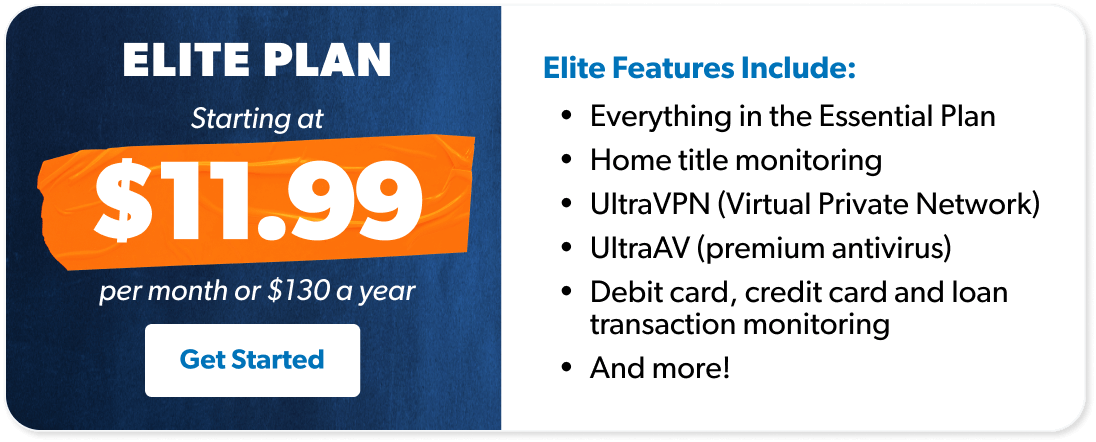
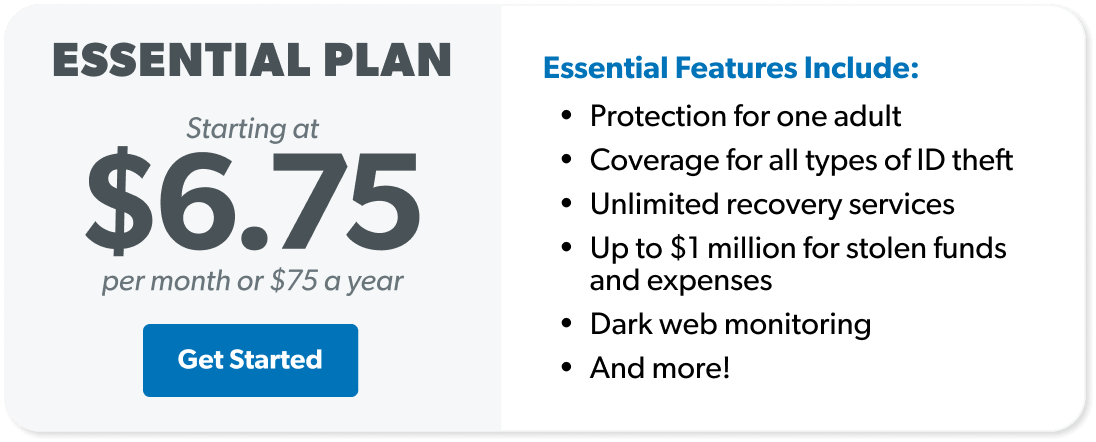
If you prefer to keep your cortisol levels in check, we recommend putting a solid identity theft protection plan in place—one with a dedicated password manager, like Zander’s Elite plan.
Zander’s Elite identity theft protection plan includes:
- Dedicated password manager
- UltraVPN (uses Hydra and WireGuard protocols)
- Premium antivirus software
- Home title monitoring
- Up to $2 million for stolen funds and recovery expenses
- Personal and financial monitoring
- 24/7 customer and recovery services
Yes, we’re selling something—but it’s something we’ve vetted, used and benefited from personally. This whole article has been leading here. Whether you buy Elite or decide another option works better for you, we love educating people so you can feel confident about your decision.
That’s because we want you to be able to live and give like no one else—and to do that, you need to have something to live on and give away. If identity thieves steal your life savings because of a weak password, you’ll be stuck piecing your life back together instead.
So make sure you’re protected.
Next Steps
- Read up on what a VPN does and why you need one.
- Learn about data breaches and whether you’re vulnerable to them.
- Protect yourself by getting a comprehensive plan like Zander’s Elite identity theft protection plan.
-
Are password managers safe to use?
-
A good dedicated password manager with an encrypted vault, zero-knowledge architecture and multifactor authentication is safe to use—and when used properly, it’s actually safer than running the risk of password fatigue or reusing passwords. Other options, like browser-based password managers, are less secure.
-
What are online password managers?
-
Online password managers are tools that create strong passwords, then store and manage them in encrypted, cloud-based vaults. Since they’re cloud-based, they can sync across multiple devices—making cybersecurity more convenient.
-
Should I use Google Password Manager or a dedicated password manager?
-
If you’re looking for the highest level of security, a dedicated password manager is your best option. A reputable one with zero-knowledge architecture encrypts your passwords before they ever reach its vault—so even if criminals hacked the vault, the data would be unreadable and unusable. With Google Password Manager, your passwords are stored in your Google account, or on your device if you’re not synced across devices. And while Google does encrypt your passwords while they’re traveling and stored in your account, Google has access to your account and passwords—so it’s not a zero-knowledge manager, and it’s a lot less secure.
-
Can a password manager be hacked?
-
Yes, a password manager can be hacked. But if it’s built correctly, anything stolen will be encrypted and unusable. That’s the idea behind zero-knowledge architecture: Your passwords are encrypted (scrambled) on your device before they ever leave it, so the password manager can’t see them. The bottom line? Make sure your password manager is built with this zero-knowledge feature.
Get Weekly Insights Delivered Straight to Your Inbox
Did you find this article helpful? Share it!

About the author
Ramsey Solutions

Get proven Ramsey answers fast.