
How to Customize Your EveryDollar Budget
 By
Key Takeaways
- Add a new budget category when another category, like Lifestyle, gets crowded.
- Rename budget items so they sound like your life—you can even use emojis to do it.
- Drag and drop categories and items to put your priorities in the order you want.
- Mark your most-used budget items as Favorites so they show up at the top of your budget.
- Turn on transaction reminders and set due dates to keep track of your spending and bill payments.
If your budget categories are getting crowded or you’re scrolling for what feels like forever just to find your grocery line, it might be time to give your budget a little makeover.
EveryDollar makes it easy to tweak your budget to feel a little more you. We’re talking new budget categories, fun names, helpful reminders and even emojis. Because who says your budget has to be boring?
Quick Answer
To customize your EveryDollar budget, you can add or rename budget categories and items, move them around, mark your most-used items as Favorites, and set reminders for transactions and due dates. Start with one change that would make your budget easier to use, then go from there.Here's why customizing your budget is worth it—and exactly how to do it.
Why Should I Customize My Budget?
Customizing your budget makes it easier to keep track of your money because you can set things up in a way that makes sense for you. EveryDollar, the budgeting app built by Ramsey, comes with standard budget categories like Housing and Food. But maybe you've got a side hustle bringing in extra cash or a roof that really needs replacing. You can customize your budget to plan for both.
A budget works best when it matches your life. That's why some people stick with pen and paper or an online spreadsheet. They can set things up however they want.
But you can do that with EveryDollar too! It gives you an easy-to-follow format you can adjust to fit your needs. Plus, once you've got your budget set up, it'll automatically copy over from month to month. Can your pen and paper do that?
And that's just the beginning. Let's look at how EveryDollar works and all the ways you can make your budget your own.
How Does EveryDollar Budgeting Work?
EveryDollar uses a zero-based budgeting system where your income minus your expenses equals zero. That means every dollar gets a job before the month begins. No more wondering where all your money went!
To help you get started, EveryDollar comes with budget groups built in: Income, Giving, Savings, Spending and Debt. In the Spending group, you have built-in categories like Housing, Transportation, Food, Lifestyle, Insurance, etc.
You’ll add budget items under each category to get more specific. For example, under Housing you may want to add Mortgage and Utilities. And under Food, you’ll probably want separate items for Groceries and Restaurants. After all, that grocery run and Friday-night pizza shouldn't come out of the same budget item.
How Do I Add a New Budget Category?
To add a new budget category in EveryDollar, scroll to the bottom of your budget and select + Add Spending Group. Then type in a name and start adding budget items underneath it. Easy as that!
Let's say your Lifestyle category is bursting at the seams. With clothing, gym memberships, subscriptions and fun money, it can get crowded pretty fast.
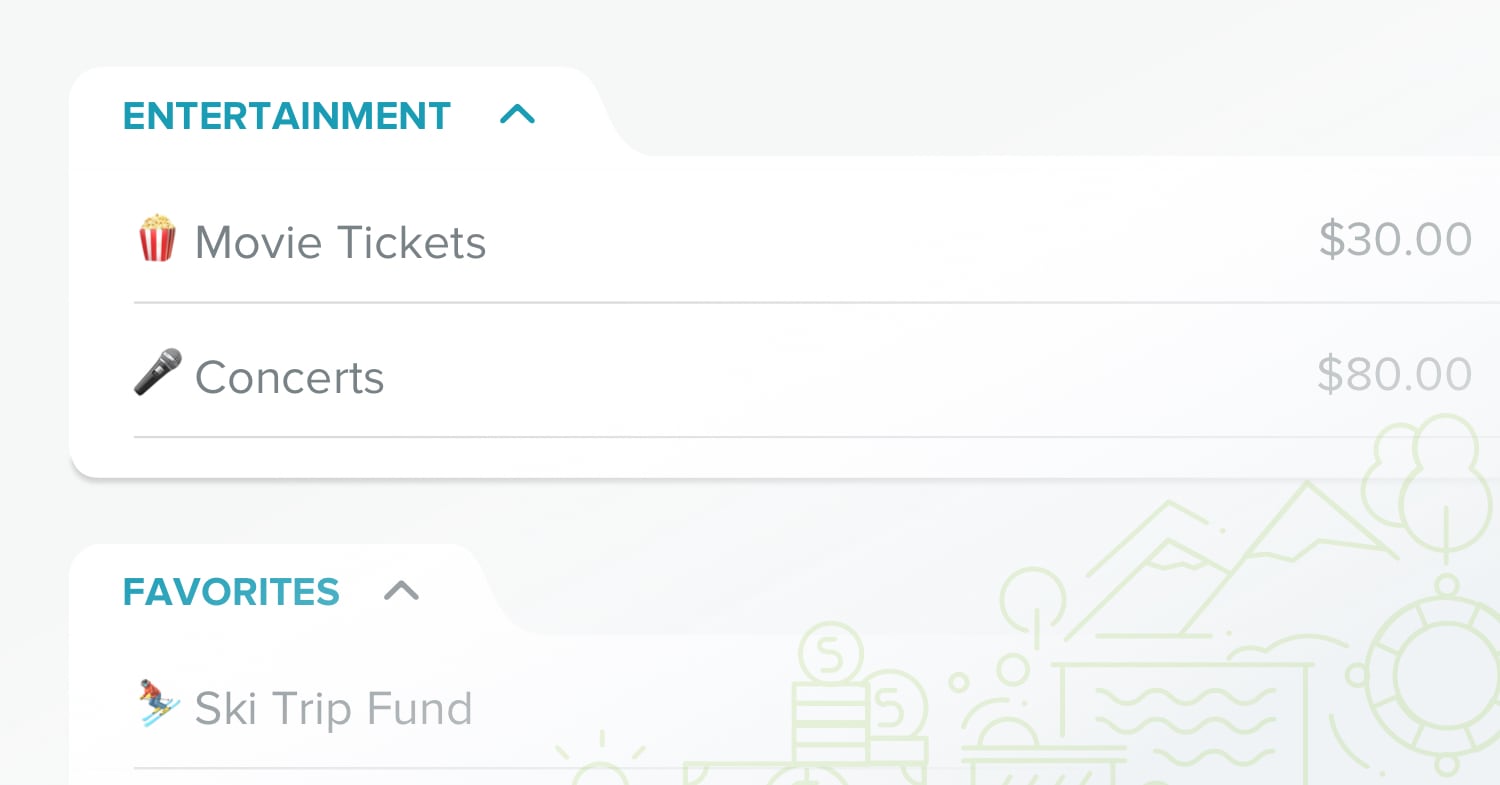
You could create a new category called Entertainment to give some of those expenses their own space and add budget items for movie tickets, concerts, Netflix subscriptions and monthly date nights. Now everything has a home, and you won't have to dig through a mile-long list to find what you're looking for.
And if you're saving up for something bigger, like Christmas gifts, car repairs or any other goal, you can turn a budget item into a fund. Just select the budget item, click Fund, and choose Make This a Fund. You’ll type in how much you want to save, and EveryDollar will track your savings and automatically roll over your remaining balance each month so you can keep building it up until you hit your goal.
How Do I Rename a Budget Item?
On your computer, click the budget item's name in EveryDollar and type in the new name. On the mobile app, tap the budget item’s name (not the dollar amount) to bring up the details screen, tap the name to edit, and tap the check mark. Easy peasy!
For example, you could rename an Income item “Extra Cash” so you have a spot to track the money coming in from your side hustle. That way, you know exactly where to put those extra dollars when payday rolls around.
Here's a Tip
If budgeting still feels intimidating, make it a little more fun. Add emoji to your budget items, like a pizza emoji next to Restaurants or a plane emoji next to your vacation fund. It’s a small change, but it might make checking your budget feel a little less like a chore.
How Do I Move Budget Categories and Items?
To move budget categories and items in EveryDollar, just drag and drop them wherever you want. On your computer, hover over a budget category until you see six dots appear, then drag it to its new spot. You can do the same thing to rearrange budget items within a category.
On the mobile app, tap the two-arrows icon at the top right of your budget. Then press and hold a budget category or item, drag it where you want it, and tap Save.
For example, your EveryDollar budget starts with Debt at the bottom of the budget. But if you're working to crush your student loans and car payment in Baby Step 2, you might want to move that Debt category right to the top. After all, you're working hard to kick that debt to the curb. Might as well keep it front and center!
How Do I Use the Favorites Feature to Customize My Budget?
The Favorites feature in EveryDollar lets you pin your most-used budget items to the top of your budget so you can find and update them faster. No more scrolling through your entire budget just to track a grocery run!
Here's how to add a Favorite on your computer:
- Select a budget item and look for the details card on the right.
- Click the star in the corner to mark that item as a Favorite.
- You'll now see your item in the Favorites category at the top of your budget.
On the mobile app, just tap the budget item and toggle on the switch next to the star. Easy as that!
And don't worry. Marking something as a Favorite won't move it out of its original budget category. It just gives you a handy shortcut.
To get started, go ahead and add Groceries and Restaurants to your Favorites so they're always easy to find. Because if you're like us, you probably spend a lot of time in the Food category tracking your spending.
Here's a Tip
If you're paying off debt or saving for a big purchase, favorite that budget item too. It'll keep your goal at the top of your budget—and the top of your mind!
How Do I Set Up Budget Reminders?
EveryDollar has two kinds of reminders to help you stay on top of your budget: transaction reminders and bill due dates.
Transaction reminders give you a little nudge to track your spending, while due dates help you remember when bills are coming up. Because let's face it, life gets busy. And it's pretty easy to forget to update your budget after a shopping trip or to lose track of when that electric bill is due.
These reminders help you stay in the habit of budgeting without covering your calendar in sticky notes. Here's how to set them up.
How Do I Set Up Transaction Reminders?
To set up transaction reminders in EveryDollar, turn them on in the mobile app (you can’t turn them on in the desktop version). That way, you'll get a little nudge to track your spending before you forget where all that money went.
Here's how to turn them on:
- Tap Today in the bottom left corner of the screen.
- Tap the three lines in the top right.
- Tap Notifications.
- Toggle Transactions Reminder on.
Once you've turned them on, EveryDollar will remind you to track your transactions every Tuesday at 9 a.m.
How Do I Set a Due Date Reminder?
To set a due date reminder in EveryDollar, just select the budget item you want to add a due date to and choose when the bill is due. That way, you won't have to rely on your memory to keep up with every payment.
Here's how to set one up on everydollar.com:
- Click the budget item.
- Click Due Date on the details card on the right.
- Pick a date on the calendar. It has to fall in the current month. Check Repeat every month if the bill comes due every month.
- Click Save.
On the mobile app, tap the budget item, select Due Date, choose your date, toggle on Repeat Monthly if it’s a recurring bill, and toggle on Remind Me. Then tap Save. Just make sure your app notifications are turned on so EveryDollar can remind you when that bill is coming up.
Transaction reminders help you keep track of where your money goes, and due dates help you stay on top of what's coming up. Go ahead and set up both!
Here's a Tip
Don't wait until the first of the month to plan next month's budget. EveryDollar can remind you when it's time to get started! On the mobile app, head to Notifications (the same place you turned on transaction reminders) and toggle on the reminder to create next month's budget. A budget isn't a slow cooker. You can't set it once and walk away.
The more you make your budget your own, the easier it is to stick with it. And EveryDollar makes it easy to set things up just the way you like them. So go ahead and start using EveryDollar for free today. Your money goals aren't going to reach themselves!
Next Steps
- Clean up your budget categories. Open EveryDollar and find a category that's getting a little crowded. Add a new category or rename a budget item to make things easier to find.
- Pick your Favorites. Mark the budget items you use most as Favorites so you can get to them faster. Less scrolling, more budgeting!
- Set up your reminders. Add a due date to your next bill and turn on transaction reminders in the mobile app so you can stay on top of your spending.
-
How do I customize my budget for irregular income?
-
To customize your budget for irregular income, add each income source as a separate line item in EveryDollar. Then, plan your expenses in order of priority, starting with giving and saving, followed by your Four Walls: food, utilities, shelter and transportation. Make sure the essentials are covered before budgeting any extra income toward nonessentials.
-
Can I share my customized budget with my spouse?
-
Yes! You and your spouse can share the same EveryDollar budget so you're both working from the same plan. Just go to Settings, select Manage Your Account, and click Manage Household. Once your spouse accepts the invitation, you can both view and edit your customized budget.
-
What is the difference between a budget category and a budget item?
-
A budget category is a larger group in EveryDollar, like Food, while a budget item is a specific expense within that category, like Groceries or Restaurants. Think of categories as a way to organize your budget and items as the places where you actually plan and track your spending.
-
Can I customize my EveryDollar budget on both the mobile app and the web?
-
Yes! You can customize your EveryDollar budget on both the mobile app and everydollar.com. That includes adding budget categories, renaming items, and moving things around. Just keep in mind that transaction reminders have to be turned on through the mobile app. And since your budget is tied to your account, your changes will show up wherever you log in.
-
Is customizing my EveryDollar budget free?
-
Yep! You can customize your budget with the free version of EveryDollar. That means you can add as many budget categories and items as you need, rearrange things, and even set bill due dates without paying a dime. EveryDollar premium offers extra features like automatic bank connection, but you don't need premium to make your budget your own.
Get Weekly Insights Delivered Straight to Your Inbox
Did you find this article helpful? Share it!

About the author
Ramsey Solutions

Get proven Ramsey answers fast.